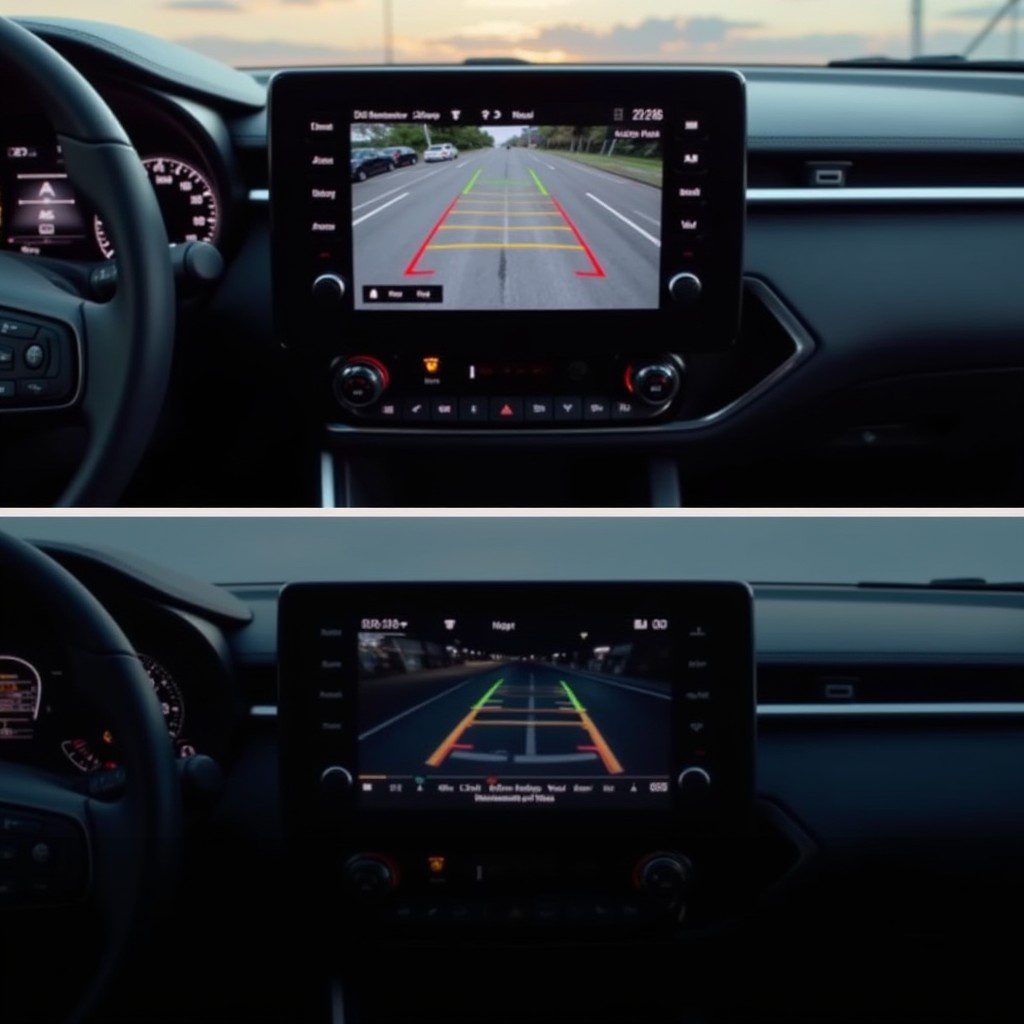

A few mornings after I bought my 2024 Corolla, the multimedia screen went dark while I sat in the driveway. The car looked awake, the dash showed vehicle info, but the center screen stayed in what owners call sleep mode. I dug into manuals, dealer advice, firmware notes, and owner forums to figure out why the Toyota Corolla sedan sleep mode happens and what you can do about it.
This guide blends official info, community reports, and my hands-on experience so you can diagnose and fix that sleep mode without guessing.
Table of Contents
What exactly is “sleep mode” on a Toyota Corolla sedan?
When people say “Toyota Corolla sedan sleep mode” they usually mean the center infotainment screen appears to shut down or go blank while other systems stay active. In some cases the screen shows a low-power black display, in other cases it reboots or is unresponsive until the car cycles power. The behavior ties to the multimedia software, power management rules, and vehicle settings that aim to protect battery and reduce distraction. Official Toyota documentation references power and screen settings in their multimedia guides and owner manual
.
Why the screen goes into sleep or blank mode: the main causes
From my research and conversations with technicians, these are the usual causes of a Toyota Corolla sedan sleep mode event:
- Power management logic. The multimedia unit may enter a low-power state when the car is off or in accessory mode to save battery. Owner manuals list settings around screen timeout and power behavior.
- Software bugs in the new multimedia system. The 2024 audio and multimedia platform is updated from previous years and several users reported screen reboots or black screens that required firmware updates.
- Phone connection glitches. Wireless Apple CarPlay or Android Auto handshakes can confuse the head unit and cause it to freeze or drop into sleep until it reestablishes a connection. Community reports mention Android Auto and CarPlay connection issues on recent Corollas.
- Hardware faults or loose harness. Less common, but a poor connection behind the unit or a failing unit can cause intermittent black screens. Dealers sometimes replace or reflash units to resolve it.
How Toyota documents the multimedia power behavior
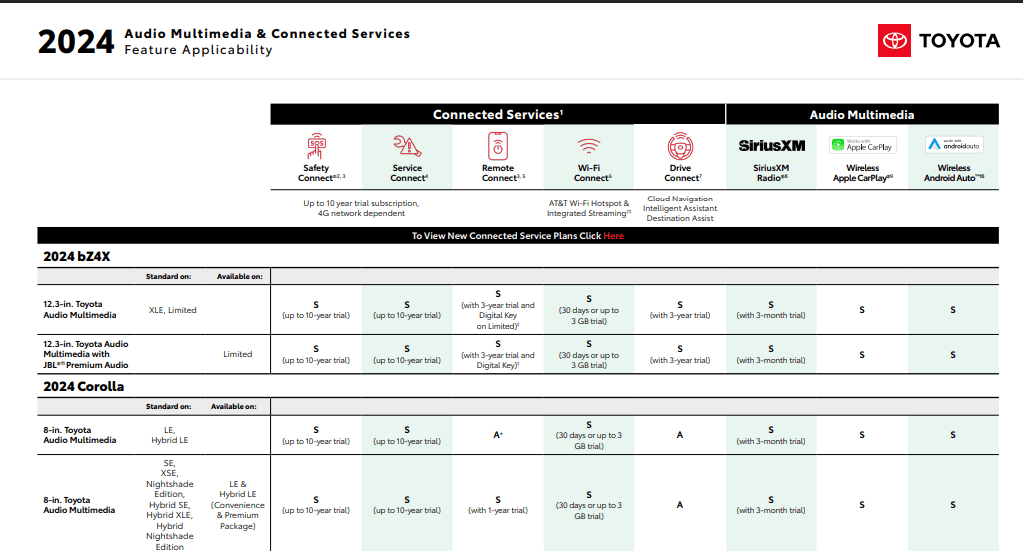
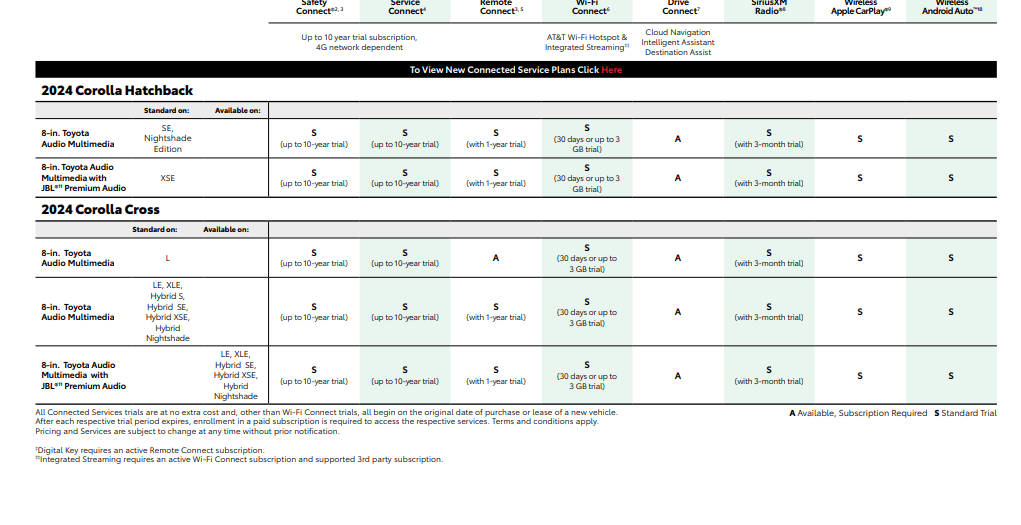
Toyota publishes a multimedia and connected services applicability guide and the Corolla owner’s manual that outline display behavior, day/night mode, and power features. Those documents explain how the screen behaves when the vehicle enters accessory or off modes and how to toggle day/night displays. If your Corolla seems to mutate between modes, check the owner manual’s multimedia section first.
Real symptoms owners report (what to watch for)
From owner forums and social posts I tracked, the most common Toyota Corolla sedan sleep mode symptoms include:
- The screen blanks randomly while driving or idles black after the car is turned off.
- The infotainment system reboots every few minutes and returns after a pause.
- Wireless CarPlay connects but navigation will not display on the head unit.
- Screen stays on but is not responsive to touch or knobs.
If you see any of these, note the conditions: was the phone connected? Was the car in accessory mode? Did it happen after an update? Those clues narrow the fix.
Step by step: how I diagnosed my sleep mode problem (my experience)
I like to be methodical. Here is exactly what I did on my Corolla when the screen went dark the first time:
- Recreate the condition. I used the same sequence that led to the blank screen: start the car, plug in a phone, run navigation, then switch to accessory mode. The screen went black.
- Check basic settings. I opened the multimedia settings and toggled screen timeout and day/night mode. No change. The owner manual confirmed where those controls live.
- Disconnect and reconnect the phone. Wireless CarPlay was active. After a disconnect the screen returned. That pointed to a phone-handshake issue.
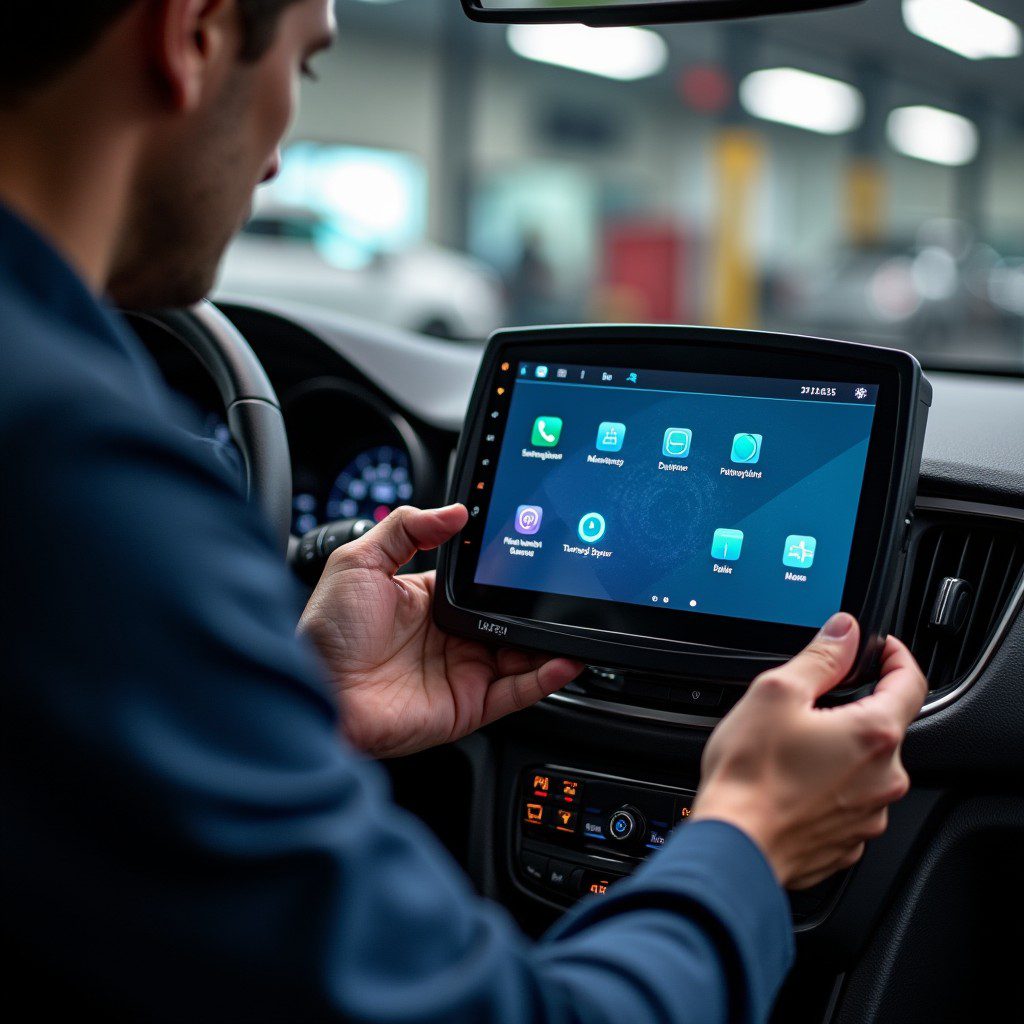
- Soft reset of the head unit. I held the power button as Toyota guidance suggests for a reboot. The unit came back and worked for a while.
- Updated firmware at the dealer. A quick VIN check with the dealer showed an available multimedia update resolving known reboot issues. After the update the intermittent sleep mode stopped. The dealer referenced a known fix.
That sequence fixed my unit and gave me a checklist to recommend to others.
Practical fixes you can try right now
Try these in order. They escalate from simple user actions to dealer updates.
Quick checks you can do today
- Toggle screen mode from Auto to Day or Night in Settings. That sometimes stops auto transitions that look like sleep.
- Disconnect wireless CarPlay/Android Auto and use a USB connection if possible to test whether wireless handshake causes sleep.
- Soft reset the head unit by holding the power/home button per the manual.
- Check battery voltage if the car has accessory power issues.
If the problem persists
- Back up multimedia settings, then ask your dealer to check for firmware updates. Toyota released updates addressing infotainment blanking and slow boots for some 2024 models. Dealers can apply those updates.
- Ask the dealer for an inspection of the head unit harness if the unit still reboots or goes black without pattern. Loose connections can cause intermittent behavior.
Is this a wide 2024 multimedia setup issue or rare?
Reports show a mix. Some owners experienced intermittent blanking and reboots, but Toyota documented and released targeted updates for multimedia systems in certain MY24 Corollas. That suggests the issue appeared often enough to merit fixes but did not affect every vehicle. Community threads show many users fixed problems with a reboot or software update, while a smaller number required hardware attention.
The role of wireless smartphone integration (CarPlay, Android Auto and smart GPS)
A common question is whether the Corolla has built-in smart car GPS or relies on phone navigation. The 2024 Corolla supports Apple CarPlay and Android Auto and Toyota’s connected services for some regions. If you use wireless CarPlay the phone handles navigation and the head unit mirrors it. Miscommunication during that mirroring can make the display appear to sleep while the phone actually lost the connection. For troubleshooting, test navigation directly from the car’s native nav if equipped, and try wired CarPlay to isolate the phone layer.
Quick reference table: symptoms and first actions
| Symptom | First action | If not fixed |
| Screen blacks while driving | Soft reset; check phone connection | Dealer firmware update |
| Screen boots but unresponsive | Reboot; toggle Day/Night mode | Dealer diagnosis for harness |
| CarPlay shows but no nav on screen | Use wired CarPlay | Update phone and head unit firmware |
| Screen stays on after car off | Power settings check in manual | Battery voltage check; dealer |
Sources for behavior and reset steps: Toyota multimedia guide and owner manual.
How Toyota’s features and trims can affect multimedia behavior
Different trims and packages can include different infotainment features. For example the 2024 Toyota Corolla LE and SE use the updated multimedia stack with wireless CarPlay support on higher trims, while hybrid models and Nightshade packages may include other connected services. If you see inconsistent behavior across trims, check the applicable multimedia features list for your VIN in Toyota’s applicability PDF. That document lists which trims have which connected services and whether wireless features apply.
Some related specs and trim notes I confirmed while researching the Corolla lineup: the 2024 Corolla hybrid specs and engine data, horsepower figures for the 2.0 engine, and interior layout details. These are helpful if you pair multimedia troubleshooting with trim or feature questions. For specs see Edmunds and Car and Driver coverage.
Common owner questions answered
Does a 2024 Toyota Corolla have SmartCar GPS or SmartDeviceLink?
Most 2024 Corollas support Apple CarPlay and Android Auto and Toyota’s connected apps depending on region. SmartDeviceLink is an open platform some OEMs use; Toyota uses its connected services and Toyota-branded apps in many markets. Check your vehicle’s multimedia applicability sheet for exact features.
Do all 2024 Corollas have push button start?
Push button start availability depends on trim and options. Many 2024 Corolla trims include push button start, but lower trims may use a keyed ignition. Check the specific trim’s equipment list or your owner manual.
Will a firmware update remove my settings?
Dealers usually note that a software update can reset some settings. Ask them to back up or record your preferences before applying updates.
When to escalate to the dealer or Toyota support
If you try the basic fixes and the Toyota Corolla sedan sleep mode persists, escalate:
- Document the behavior. Note time, conditions, phone connected, and whether the unit reboots.
- Visit the dealer. Share your notes and ask for a multimedia software check and VIN-based applicability update. Dealers have official firmware and TIS access to apply fixes.
- Ask for a technical bulletin reference. If a known fix exists, dealers will reference it. If they do not, request escalation to Toyota technical support.
My final take and personal recommendation (my experience)
After my dealer applied the firmware update, the intermittent sleep mode vanished. My daily drive returned to normal and wireless CarPlay stayed stable. From this experience and what I found in owner reports, multimedia sleep mode in the Toyota Corolla sedan often stems from software interaction with phone connections and power state logic rather than a catastrophic hardware fault. Start with the simple user steps I outlined, and if those fail move to dealer software updates. It saved me hours and a lot of frustration.
Quick checklist: fix flow for Toyota Corolla sleep mode
- Toggle day/night and screen timeout settings.
- Disconnect wireless CarPlay/Android Auto and test wired.
- Soft reset the head unit using the power button.
- Update phone OS and multimedia firmware.
- Visit the dealer with notes if a problem persists.
Toyota Corolla Sleep Mode Troubleshooting Card
1. First signs to watch for
- Center screen goes black or stays dark
- Touchscreen freezes
- Wireless CarPlay or Android Auto disconnects
- Navigation will not display
- Screen reboots on its own
2. Quick fixes to try before anything else
A. Check screen settings
- Go to Settings
- Switch Screen Mode from Auto to Day
- Check Screen Timeout and set it to a longer duration
B. Reset the head unit
- Hold the power button for about ten seconds
- Wait for the system to restart fully
C. Disconnect your phone
- Turn off wireless CarPlay or Android Auto
- Test with a USB cable
- Try a different cable if wired connections act up
D. Cycle the ignition
- Turn off the car
- Open the driver door
- Wait thirty seconds
- Restart and check the screen again
3. If the problem continues
A. Update the software
Ask your dealer to:
- Check for a multimedia firmware update
- Apply the latest Toyota calibration for your VIN
- Confirm the update does not erase your presets
B. Check the hardware
Request the technician to:
- Inspect the head unit harness
- Confirm no loose connectors
- Verify the USB port integrity
4. What to tell your dealer
You can hand this list directly to them:
- Screen intermittently enters sleep mode or goes blank
- Issue repeats even after a soft reset
- Wireless phone integration may trigger it
- Request firmware update check
- Request inspection of the multimedia harness
5. Helpful notes
- The 2024 Corolla multimedia system manages power aggressively, so black screens sometimes relate to battery conservation.
- Wireless CarPlay glitches are one of the most common triggers of false sleep mode.
- Firmware updates have fixed similar issues for many owners.
- Document the time and conditions when the issue happens. This helps the technician duplicate it.
6. Emergency workarounds
If your screen dies during a drive:
- Keep driving safely
- Use your phone for navigation until you can restart the car
- Avoid rapid accessory mode switching
- Avoid using wireless mode if it repeatedly triggers the blackout
7. Keep these items in your glovebox
- A USB cable that you know works
- Dealer service advisor business card
- This troubleshooting card
- Your Toyota multimedia version number (written down after checking settings)
Final takeaway
The Toyota Corolla sedan sleep mode usually signals a software or connection quirk, not a lost cause. Start with settings, test phone connections, reboot the unit, and then ask your dealer to check for firmware updates. With the right steps you can stop guessing and get the screen behaving reliably again.
Winter is here, so if you have an Electric car read our article “Do Electric Cars Work in the Winter?” to save the cost of your EV.You can also read our new article: Cost to Install EV Charging Station.